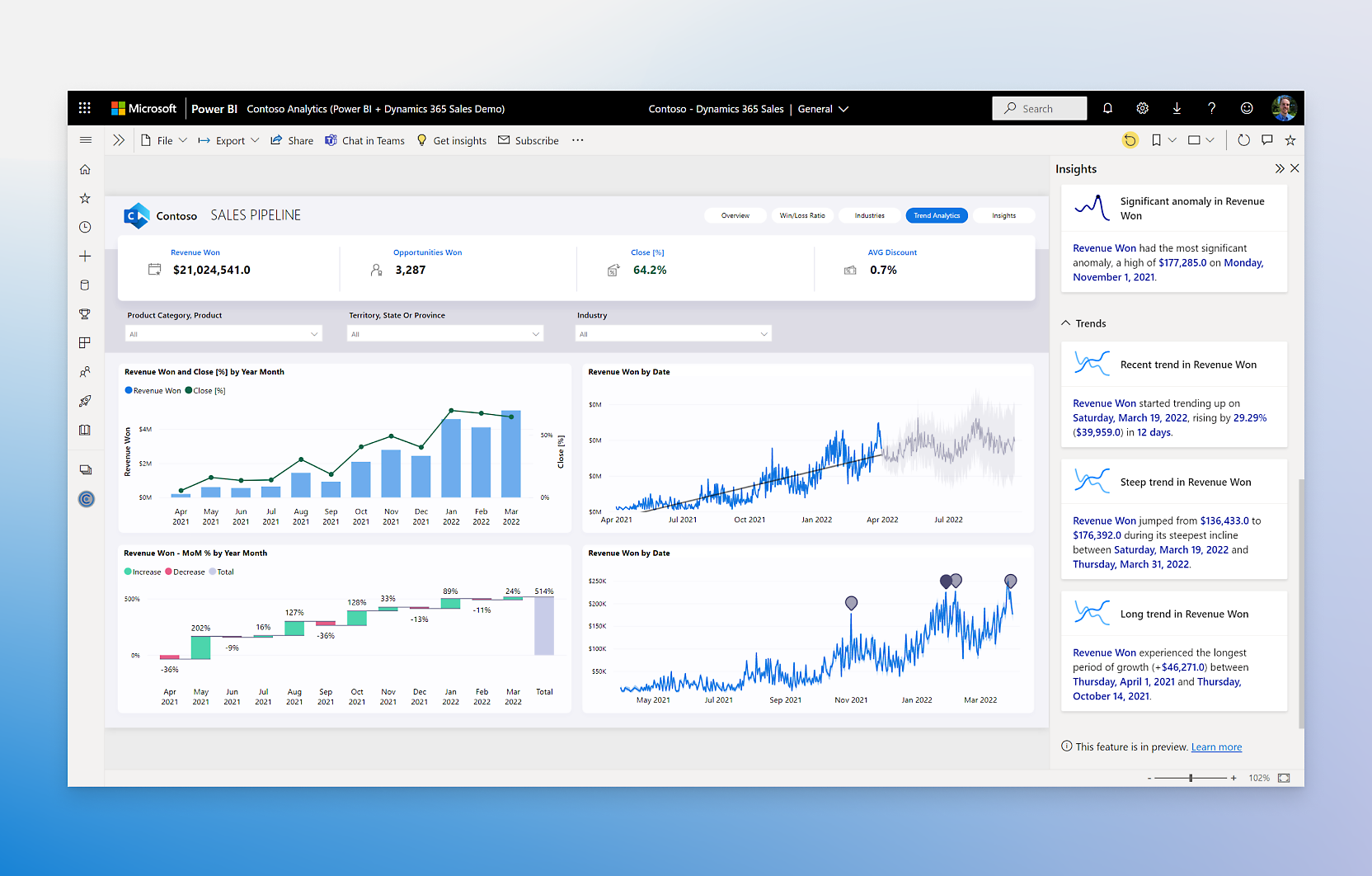
Google Data Studio (Looker)
Slide
Show Google Data Studio reports on your devices so key metrics stay visible across the team.
What you can do
- Show any public report – Display Google Data Studio reports shared with “Anyone with the link”
- Navigate to a specific page – Optionally pin a report to a particular page
- Always up to date – Reports render live from the embed URL, no image rendering needed
Set it up
Data Studio (formerly Looker Studio) reports are displayed using Studio's built-in Website slide — there's nothing to connect.
Heads up — public sharing required. Your TV is an anonymous browser; it can't log into Google. Data Studio reports must therefore be set to Anyone with the link can view for the embed to render on screen. If your data is sensitive, use Looker (Google's enterprise BI platform) instead — its signed-embed flow keeps reports private.
Get a Data Studio embed URL
- In Data Studio, open the report you want to display.
- Click Share → Manage access and set sharing to Anyone with the link can view.
-
Click File → Embed report (or the Embed button top-right) → toggle Enable embedding → switch to the Embed URL tab and copy the URL.
Important: the dialog opens on Embed code (an
<iframe>snippet) — don't copy that, and don't use the plain share URL either. Only the Embed URL will render in a frame.
Add it as a slide
- In your slideshow, click Add slide → Website.
- Paste the Data Studio embed URL.
- Save. The report will render live on your devices.